On this page
- What do you need before you start?
- Step 1: create the project and upload rooms
- Step 2: add close-ups for rhythm
- Step 3: choose the camera movements
- Step 4: pick an edit style and generate
- How much does a listing video cost?
- Where should I publish it?
- What mistakes should I avoid?
- What should I check before publishing?
- What if the rooms are empty?
Listing videos get more attention than photo galleries, but most agents don't have the time or budget to film every property. The good news: if you have the listing photos, you can make a real estate video from photos with AI in a few minutes. This guide shows the full workflow in Lupa's Space Motion, from choosing photos to exporting a video ready for portals and social media.
What do you need before you start?
- 5 to 20 photos of the property. One strong photo per room is better than many similar ones.
- Photos in any common image format (JPG, PNG, WebP). Very large files are compressed automatically when you upload them.
- A decision on format: vertical (9:16) for social media, or horizontal (16:9) for portals and your website. You pick it when you create the project and can't change it later.
Step 1: create the project and upload rooms
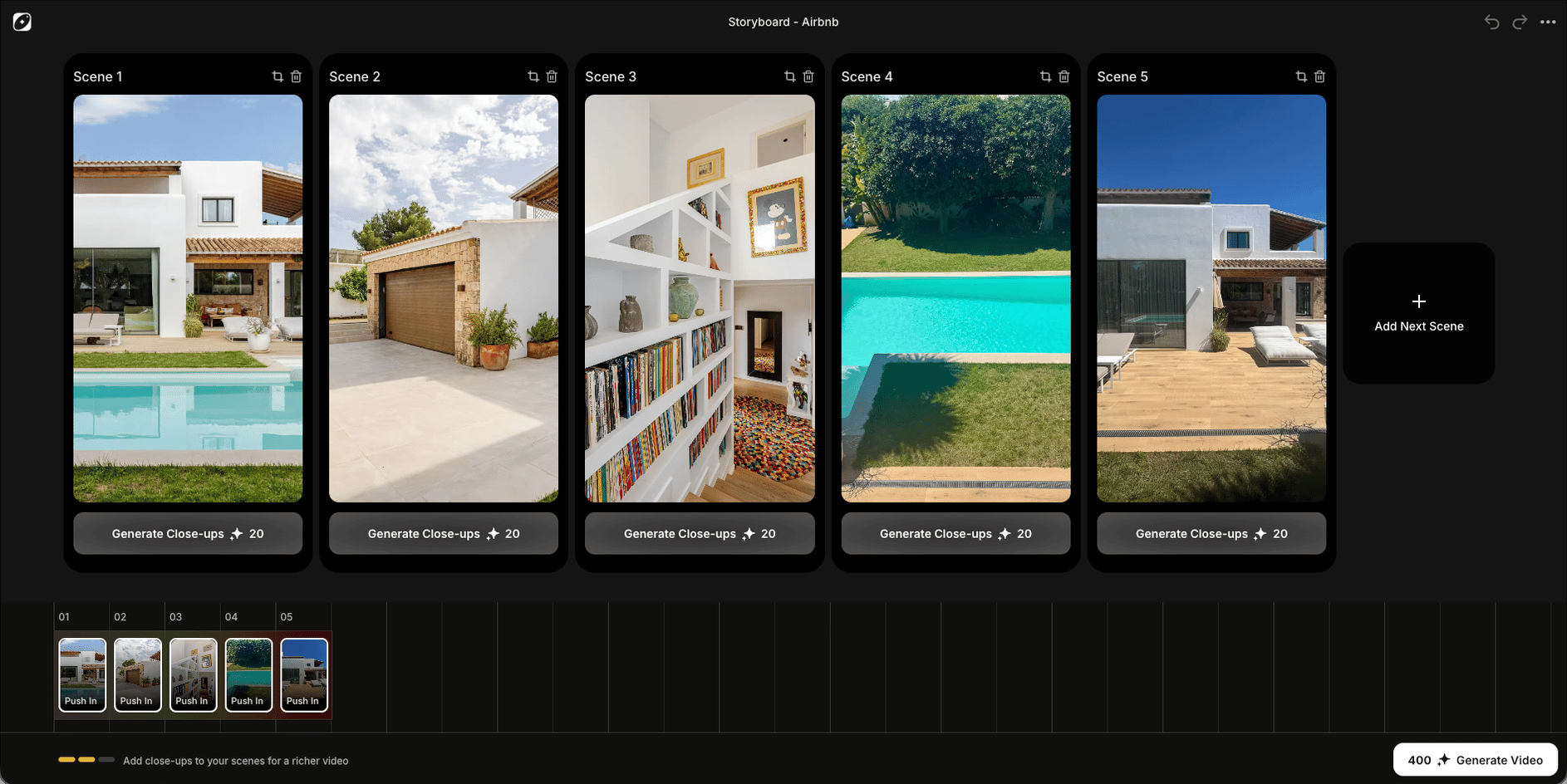
Open Space Motion and create a new project. Choose the format, then upload your photos as scenes. Each scene is one room, and the order of the scenes is the order of the tour, so arrange them like a real visit: entrance, living room, kitchen, bedrooms, bathroom, terrace or view.
Step 2: add close-ups for rhythm
A video made only of wide shots feels like a slideshow. Close-ups fix that. For each room, generate up to 4 detail shots: the kitchen tap, the texture of a sofa, the view from a window. Lupa writes the ideas and renders them from your room photo, so they match the space.
Each close-up costs 5 tokens. Review them: if one invents something the property doesn't have, delete it. A property video still has to be honest.
Step 3: choose the camera movements
Every shot gets a camera movement. The main shot of each room starts as a Push In; close-ups start as an Orbit Right. You can change any shot from the timeline to Push Out, Orbit, Truck, Tilt or Boom. Our guide to camera movements for interior video explains which move suits which room.
Step 4: pick an edit style and generate
Choose one of three edit styles, each with its own soundtrack: Cinematic for premium homes, Lowky for a calm, natural feel, or Upbeat for fast, social-first cuts. Then generate.
The storyboard shows a quality meter. Below 5 images you can't generate yet. From 8 images with at least one close-up, the meter turns green.
How much does a listing video cost?
Generating costs 80 tokens per image in the storyboard, and each close-up costs 5 tokens when you create it. A typical listing with 5 rooms and 3 close-ups (8 images) costs 15 tokens for the close-ups and 640 tokens to generate. Your first Space Motion video is half price, and failed renders are refunded automatically. See pricing for plan allowances.
Where should I publish it?
| Channel | Format | Tip |
|---|---|---|
| Instagram Reels, TikTok | 9:16 | Use Upbeat and put the best room first |
| Listing portals, website | 16:9 | Use Cinematic; follow the real tour order |
| WhatsApp, email to buyers | 9:16 | Short is better: 6 to 8 images |
| YouTube | 16:9 | Pair it with the photo gallery in the description |
What mistakes should I avoid?
- Too many similar photos. Three angles of the same bedroom make a slow, repetitive video. Pick the best one and add close-ups instead.
- Dark or tilted photos. The camera move exaggerates a crooked horizon. Straighten and brighten your photos before uploading.
- Invented details. Close-ups are generated, so check each one. Delete any that add a view, a fireplace or a finish the property doesn't have.
- Random order. Viewers follow the video like a visit. Jumping from the bathroom to the garden and back to the kitchen is disorienting.
- The wrong format for the channel. A horizontal video on Reels shows up small with black bars. Create one project per format if you need both.
What should I check before publishing?
Watch the video once with sound and once without, as most social feeds autoplay muted. Check that the first two seconds show the property's best room, because that's what stops the scroll. Make sure no close-up misrepresents the property, and add the address, price or a call to action in the caption rather than on top of the video. If you publish on a listing portal, check its video length and format requirements first.
What if the rooms are empty?
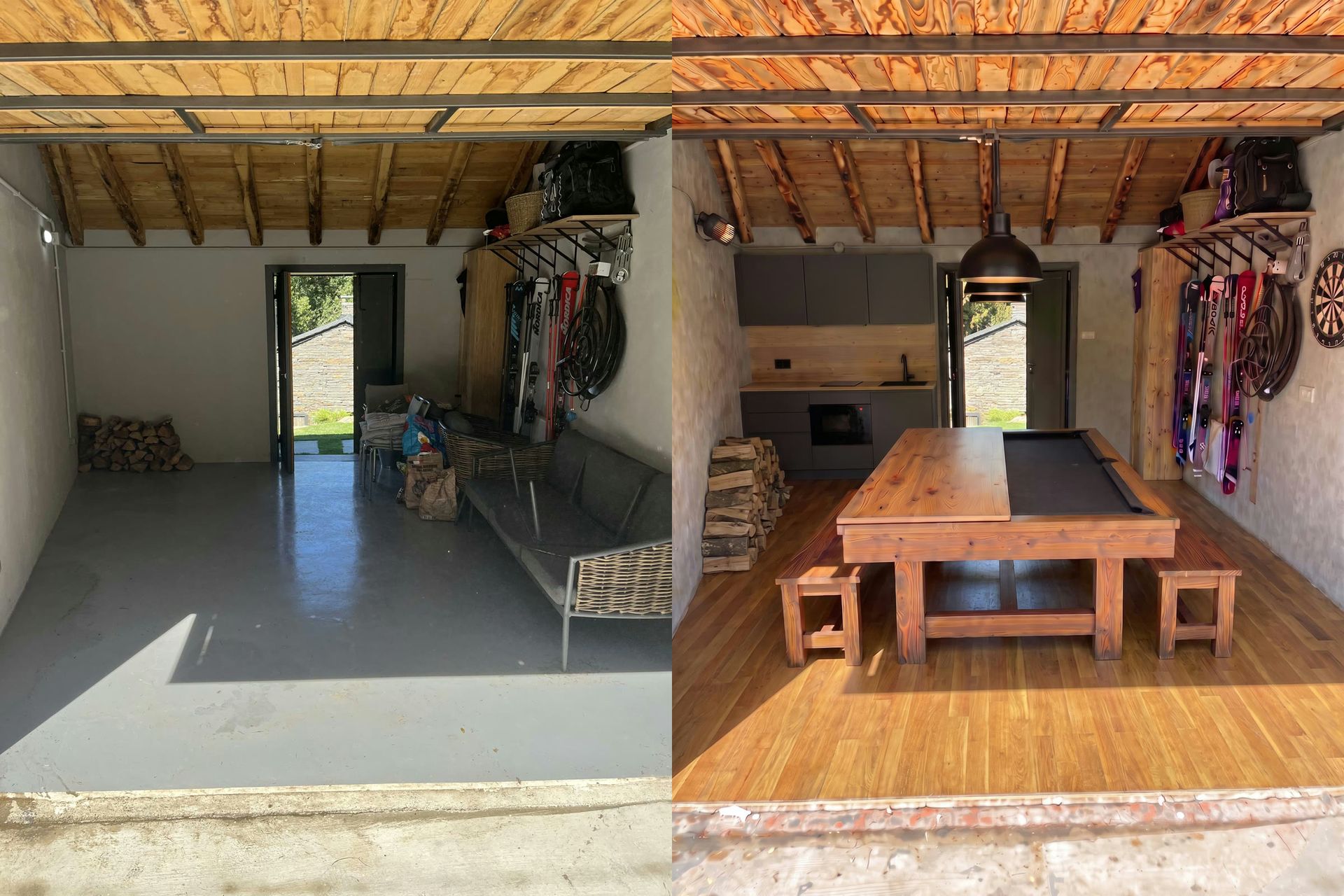
Empty rooms look smaller and colder on video. Stage them first with AI, then animate the result: see our guide to virtual staging video. For more workflows, browse Real Estate & Interiors, or read what Space Motion is in more detail.
Still have questions?
Can I make a real estate video with only photos?
Yes. Space Motion needs only photos of the rooms. It adds AI close-ups and camera movement and edits everything to music.
How many listing photos should I use?
At least 5 images, around 8 for a good result, and up to 20. One photo per room is usually enough, plus a few close-ups.
Should I make a vertical or horizontal video?
Vertical (9:16) for Instagram Reels, TikTok and WhatsApp status; horizontal (16:9) for listing portals, YouTube and your website.
Is the AI video accurate to the property?
The camera moves through your real photos, so the rooms stay recognisable. Close-ups are generated from each photo, so review them and delete any that invent details.
How long does it take?
The video renders in the background, so you can leave the page while it works and come back when it's ready.